Every installer works the same way
Each installer only changes its own agent. Passwords and secrets always show as ********; leave them to keep them. Lists (servers, tenants, cloud logins) have Add, Update selected and Remove selected buttons: add as many as you need, nothing is saved until the last step, and the result shows OK or FAILED for each item.
Have these ready
- Windows administrator login on the client PC.
- AutoCount Accounting 2.2 installed and opening the client's books on this PC.
- The SQL Server name exactly as AutoCount shows it (account book list), e.g.
192.168.195.181\A2006. - The AutoCount username and password (usually
ADMIN). - The number of licence seats (AutoCount License Setting, see Where to find it in AutoCount below).
- The client's site name in Charlie (e.g.
PAW), if there is more than one agent.
Run the installer
Copy CharlieAI-Accountant-ACDesktop-Charlie.exe to the PC, right-click it → Run as administrator. Keep the suggested install folder and click Next.
AutoCount connection
- SQL Server name: copy it from AutoCount Accounting.
Another PC:192.168.195.181\A2006· This PC:(local)\A2000or(local),1111 - Username / password: the AutoCount login, e.g.
ADMIN.
The Charlie tenant and the SQL login are already built in.
Licence seats
How many AutoCount seats the agent may use at once. Too high and jobs fail with "no licence seat available".
Site name
Type the site name as registered in Charlie, e.g. PAW. Several: PAW, MCL. Leave blank when this is the only agent (it then takes every job).
Other SQL Servers
Only if the agent must also reach books on another SQL Server. Type the server name, user, password, licence type (blank = full) and click Add. Add as many as needed. Nothing to add? Just click Next.
Licence types
Only when the licence has separate seat pools, e.g. full=5, account=2, and the primary server's type. Otherwise leave blank.
Check and install
The last page lists what you entered and the AutoCount version found. Click Install. The settings are encrypted on this PC and the Windows service starts by itself.
SQL Server name examples
| Where the SQL Server is | Type |
|---|---|
| Another PC or server (IP + instance) | 192.168.195.181\A2006 |
| This PC, named instance | (local)\A2000 |
| This PC, fixed port | (local),1111 |
Always copy it from AutoCount Accounting on that PC.
Where to find it in AutoCount
Click a picture to enlarge it. Client names and licence numbers are hidden.
1 · SQL Server name
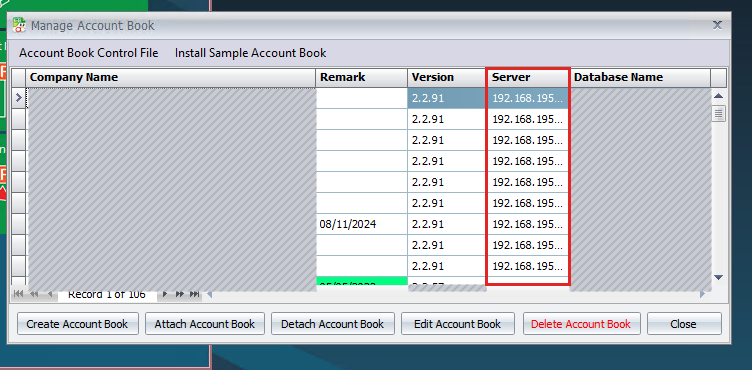
192.168.195.181\A2006.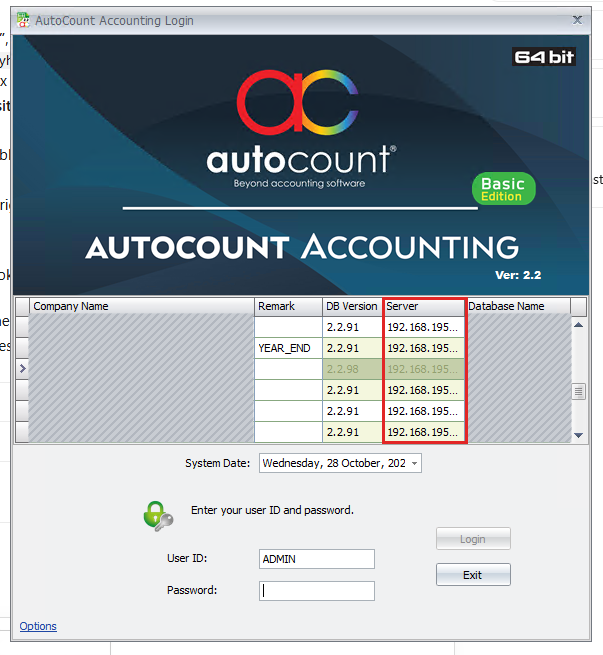
2 · Licence seats and licence types
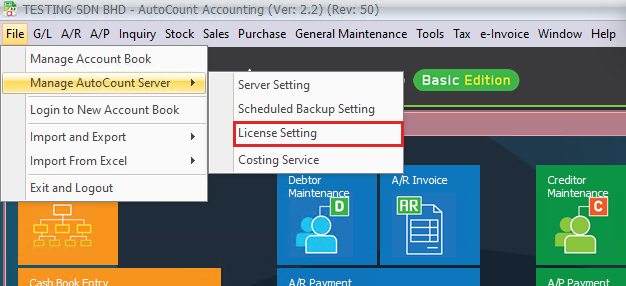
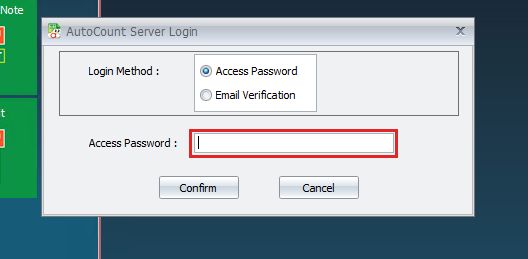

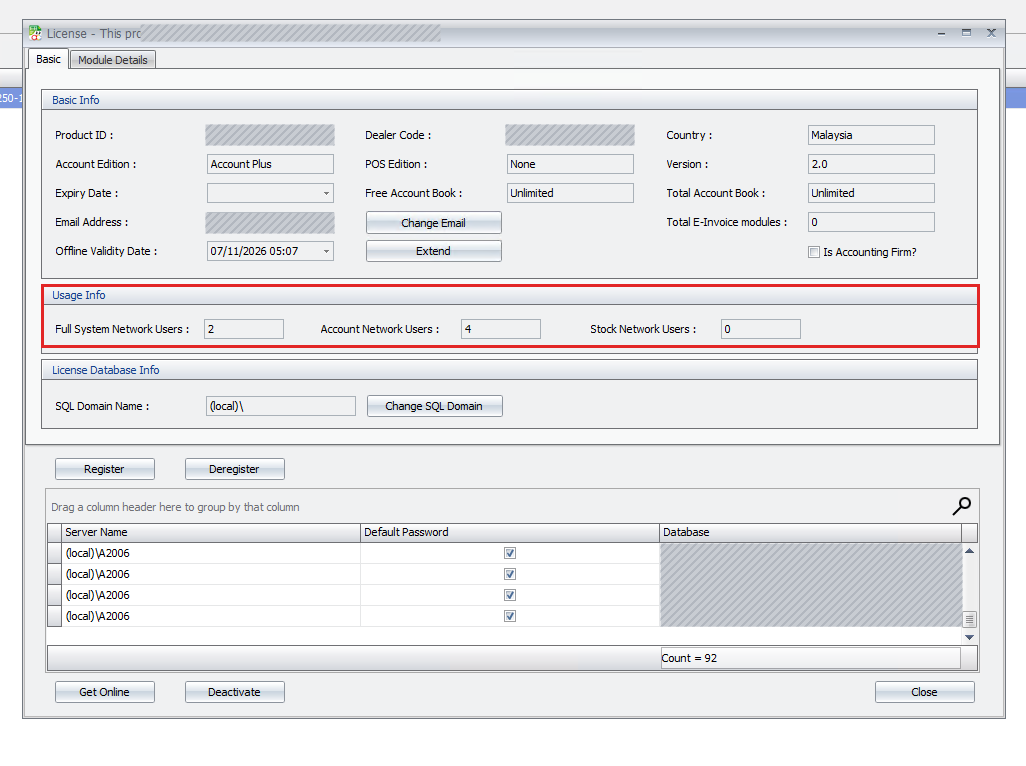
| Installer page | Type (for the example above) |
|---|---|
| Licence seats | At most Full + Account + Stock = 6. Use fewer if staff also log in to AutoCount at the same time, e.g. 5. |
| Licence types | full=2, account=4, stock=0, and the primary server's type (e.g. account). Leave blank if the licence has only one type. |
Update to a new version
Which version is it? Right-click the .exe → Properties → Details → Product version (e.g. 1.7.4). The installed version is in Windows Apps & features.
Reinstall starts over: the old settings are saved as appsettings.local.json.bak, you answer the first-install questions again, and extra tenants (including one with its own job table, e.g. MCL) are carried over. Use it only when Update and Change settings cannot fix it.
Choose Change settings
Run the installer again → Change settings → Next. The next page shows the current settings to review.
Tick what to change
Grouped list, current value on the right. You get one page per tick.
Edit with current values
- Every box shows the current value; secrets show
********(kept unless retyped). - List pages: Add a new row, or click a row → change → Update selected, or Remove selected (Undo remove puts it back).
- Rows show
+ NEW,* CHANGED,- REMOVEuntil saved.
Tenants and their job table
- Each tenant row: name, URL, tenant ID, client ID, secret, optional Laravel URL + storage secret, Job table.
- Job table starts as
cr6f2_autocountjobs. Change it only for a tenant with its own table, e.g. Kaizokz_autocountjobs, MCLmcl_autocountjobs. Its columns are read from Dataverse automatically. - Same environment as another tenant is fine when the job table is different (MCL and SYHC).
- To remove a Laravel URL: empty the box → Update selected. The URL and its storage secret are both removed.
Check, save, read the result
"Ready to save" lists every change → Save changes. The result shows OK or FAILED (with the reason) for each item. Fix a failed one and run Change settings again.
What each option is for
| Option | Use it when | You see |
|---|---|---|
| AutoCount Desktop connection | ||
| Primary SQL Server and AutoCount login | The SQL Server moved or was renamed, or the AutoCount password changed. | Server name, username, password (********). |
| Licence seat count | More seats bought, or "no licence seat available". | Current number. |
| Site name(s) | The agent takes the wrong client's jobs, or serves another site. | Current site(s); blank = every job. |
| Other SQL Servers | Books on another SQL Server, or that server's login changed. | List: Add / Update / Remove, as many as needed. |
| Licence types | Separate seat pools (e.g. full and account). | full=5, account=2 + primary type. Each other server's type is on the servers list. |
| Charlie tenants (Dataverse) | ||
| Tenants | Take jobs from another Dataverse environment too, a tenant's secret changed, or stop a tenant. | List: name, URL, tenant ID, client ID, secret, optional Laravel URL + storage secret, and Job table (keep cr6f2_autocountjobs unless that tenant has its own, e.g. mcl_autocountjobs; its columns are read automatically). Checked online when saved. At least one stays. |
Example: one agent for several sites
One PC serves SYHC, MASTER-PAW and MCL. MCL is on the same Dataverse as SYHC but has its own job table, so it is added like Kaizo.
| Page | Type |
|---|---|
| Site name(s) | SYHC, MASTER-PAW, MCL |
| Tenants → Add | Name syhc-mcl · same URL, tenant ID, client ID and secret as syhc · Job table mcl_autocountjobs |
| Licence types (optional) | More seats for a busy pool, e.g. paw=4 |
Check it works
- Win+R →
services.msc→CharlieAIAssistantACDesktopAgentis Running, startup Automatic. - Open the
logsfolder in the install folder: the newest log shows polling and no red errors. - Send one test job from Charlie for this site; the log shows
done in …s.
| Message | Fix |
|---|---|
| Cannot connect to SQL Server | Server name wrong: copy it exactly from AutoCount (192.168.195.181\A2006, (local)\A2000, (local),1111) → Change settings → Primary. |
| AutoCount login failed | Book on the primary server: Change settings → Primary → retype the password. Book on another server (e.g. HYAN on RDP53\A2006): Change settings → Other SQL Servers → click that server → retype its password → Update selected. Each server can have its own password. |
| No licence seat available | Seat count higher than the licence, or users have AutoCount open → Change settings → Licence seat count. |
| Account book needs a database upgrade | The book is older than 2.2.98: back it up, open it once in AutoCount Accounting and let it upgrade. |
| Jobs not picked up | Site name does not match Charlie's → Change settings → Site name(s). |
| Tenant FAILED when saving | The reason is shown (wrong secret, URL or IDs). Fix and run Change settings → Tenants again; nothing else was affected. |
| Tenant FAILED: 404 / job table not found | That tenant uses its own table. Set Job table to its name, e.g. kz_autocountjobs, mcl_autocountjobs. |
Server name with \\ | Type one backslash: RDP53\A2006, not RDP53\\A2006. |
Have these ready
- Windows administrator login.
- SQL Account installed and opening the client's company on this PC.
- Where the shared
Default.DCFis (usuallyC:\eStream\SQLAccounting\Share\Default.DCF). - The SQL Account username and password (usually
ADMIN). - The client's site name in Charlie, if there is more than one agent.
Run the installer
Right-click CharlieAI-Accountant-SQL-Charlie.exe → Run as administrator → keep the folder → Next.
SQL Account login
Path to Default.DCF (filled in with the usual one), SQL Account username and password. A wrong path is flagged right away.
Site name
As registered in Charlie, e.g. PAW. Blank = take every job.
Install
Click Install. The settings are encrypted, the Charlie tenant is checked online and the service starts.
Update to a new version
Reinstall: old settings saved as sqlacc_credentials.json.bak, first-install questions again, tenants carried over.
Change settings
| Option | Use it when | You see |
|---|---|---|
| SQL Account connection | ||
| Default.DCF path and SQL Account login | SQL Account moved, or the login / password changed. | DCF path, username, password (******** = keep). |
| Site name(s) | The agent takes the wrong client's jobs, or serves another site. | Current site(s); blank = every job. |
| Charlie tenants (Dataverse) | ||
| Tenants | Another Dataverse environment, a changed secret, or stop a tenant. | List with Add / Update / Remove; checked online when saved; at least one stays. |
Check it works
services.msc→CharlieAIAssistantSQLAgentis Running.logs\service.login the install folder shows polling, no errors.- Send one test job from Charlie and check it finishes.
| Message | Fix |
|---|---|
| No file at … Default.DCF | Find the shared DCF (SQL Account → company list) and use that path. |
| Login failed | Change settings → Default.DCF path and SQL Account login → retype the password. |
| Could not reach the Dataverse job table | A tenant's details are wrong; the message names it. Change settings → Tenants. |
| Jobs not picked up | Site name does not match Charlie's → Change settings → Site name(s). |
Install Python first
Install Python 3.11 or newer. On its first screen tick "Add python.exe to PATH". Have the client's AutoCount Cloud email and password ready.
Pick the latest Python 3 → Windows installer (64-bit). Already installed? Open Command Prompt, type python --version: 3.11 or higher is fine.
Run the installer
Right-click CharlieAI-Accountant-ACCloud.exe → Run as administrator → keep the folder → Next.
AutoCount Cloud login
The client's own AutoCount Cloud email and password.
Install (several minutes)
It sets up Python packages and a browser component, so it takes a few minutes. Install it before or after the AutoCount Desktop agent; they work together.
Update to a new version
Reinstall rebuilds the Python environment and asks for the login again (the old one is kept as autocount_credentials.json.bak).
Change settings
| Option | Use it when | You see |
|---|---|---|
| AutoCount Cloud | ||
| AutoCount Cloud logins | The client's Cloud password changed, or another Cloud subscription should be served, or one stopped. | List of emails (the first is the main login), passwords as ********. Add / Update selected / Remove selected. |
Check it works
services.msc→CharlieAIAssistantACCloudAgentRefreshis Running.- Run Change settings and read the Current settings page: each subscription and its synced account books are listed.
| Message | Fix |
|---|---|
| Python was not found | Install Python 3.11+ (download) with "Add python.exe to PATH" ticked, then run Setup again. |
| Cloud jobs fail with a login error | Change settings → AutoCount Cloud logins → select the login → retype the password → Update selected. |
| A step failed after 3 attempts | Usually antivirus locking a file: run Setup again and choose Update. |